
A live quiz is a quiz that a whole group answers at the same time, each person on a phone, while a host moves through the questions on a shared screen. After each question, the right answer and the leaderboard appear for everyone.
To run one you need a computer connected to a screen, an internet connection and one phone per player or per table. The rest takes six steps: create the session, write the questions, test, launch, let participants in, then host and read the report. This guide goes through them with the exact names of the buttons in Pomlet, gives an example for four settings and says plainly what the Free plan allows.
Worked example
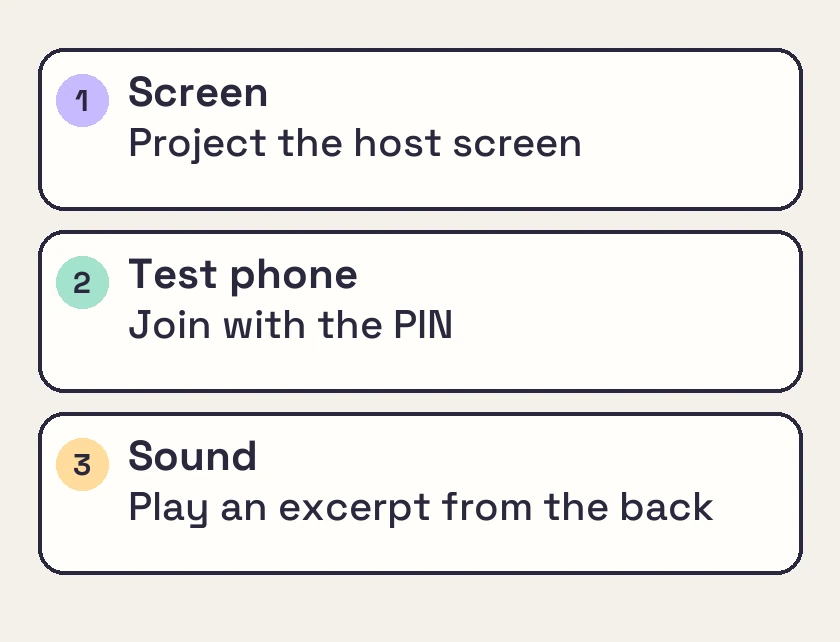
Ten minutes before you open the room
See the explanation
No. Keep the QR code and the PIN on screen, read out pomlet.com/join and the six digits, then start once the nicknames you expect are in the waiting room. Latecomers can join at any time with the same PIN and answer with the time that is left.
Open the template · True or false quiz: 20 myths with answers
The setup: a screen, a connection, phones
The host needs a computer, a recent browser and a screen everyone can see: a projector, a television or a shared screen in a video call. That is where the QR code, the questions, the results and the leaderboard are shown.
Each participant uses a phone, a tablet or a computer. They install no app and create no account. All they need is internet access, through the room’s Wi-Fi or their own mobile data.
Remotely or in a hybrid room, nothing changes: share the host screen in the video call and paste the join link in the chat. People in the room scan the QR code, the others open the link, and everyone answers the same question at the same moment.
- Screen: check from the back row that the question and the answers can be read.
- Connection: try the guest Wi-Fi or the mobile network from where participants will sit.
- Sound: if a question has an audio or video excerpt, plug the computer into speakers. In a live session, sound comes from the host’s device.
- Computer: keep it plugged in and turn notifications off.
- Variant: a single phone per table is enough to play in teams.
The 6 steps, from creation to report
The steps follow the order of the app. The words in quotation marks are the ones you will read on screen.
- Create the session: on the dashboard, click “Create session”, then choose “Create from scratch”, “Choose a template” or “Create with AI”.
- Write the questions: with “Add element”, alternate “Single choice”, “True or False” and “Poll”. A question offers 2 to 6 answers and a time limit of at most 130 seconds; “No time limit” leaves it to the host to close the question. A session holds up to 100 elements.
- Test: in the editor, “Test” runs the session with simulated participants, on the host screen and on a phone. Nothing is saved and nobody can join.
- Launch: click “Play”. Under “Live”, choose “Classic”, “Teams” or “Elimination”.
- Let participants in: the waiting room shows the QR code, the link and the 6-digit PIN. Everyone scans the code or opens pomlet.com/join, enters the PIN, picks a nickname and comes in. When the nicknames you expect are there, click “Start game”. Teams and Elimination modes need at least two players.
- Host, then wrap up: after each question come the result, the explanation if you wrote one, then the “Leaderboard”. With a timer, the question ends by itself once everyone has answered; “End question now” closes it sooner. “Final results” shows the podium, and the “Reports” page keeps the detail of the answers.
Four examples, by setting
The same sequence works in a classroom, a training room, a party or a meeting. What changes is the size of the group, the game mode and the tone of the questions. The table gives a starting point for each, with the page that covers the case and a template ready to adapt.
| Setting | Example | Suggested mode | Go further | Template |
|---|---|---|---|---|
| In class | Ten minutes at the end of a lesson to see what was understood | Classic, or Teams with one phone per table | Pomlet for teachers | Exit ticket |
| In training | A recap after each module, with a poll to open the discussion | Classic | Pomlet for trainers | Training recap |
| At a wedding | Twenty minutes between the main course and dessert, guests playing by table | Teams | Events, parties and weddings | Wedding shoe game |
| At work | Five minutes to open a team meeting or welcome a new colleague | Classic or Teams | Teams and organizations | Icebreaker questions |
A template opens in your account as a copy you are free to edit.
Setting the pace and the scoring
Allow one to two minutes per question, including the answer and the leaderboard: ten to fifteen questions therefore fill about twenty minutes. Beyond that, the game starts eating into the rest of the programme.
Vary the formats. A scored question expects a right answer; a poll or a word cloud has none and gets people talking again. Write a short explanation under the questions that matter: it appears after the answer and turns the game into a moment of learning.
- Timer: a short time for a fact, a longer one for a calculation or a text to read.
- Teams: “Best answer counts” stops the largest tables from having an edge.
- Latecomers: they can join at any time with the same PIN.
- Dropped connection: a participant who comes back in the same browser gets their place back.
- Explanations: one or two sentences are enough; nobody reads a long text on a projected screen.
Limits to know before the day
Pomlet’s Free plan holds 8 participants per live session; the host does not count. That is enough for a small group, or for 8 tables sharing one phone each. Pro raises the limit to 1,000 participants per session. Teachers and educational staff can ask for Pomlet Pro free of charge, for school use, through Pomlet for Education. When you launch, Pomlet reminds free accounts of this limit.
The other limits are the same on every plan: 100 elements per session, audio files of up to 20 MB and videos of up to 30 MB, and an excerpt of at most 120 seconds per question. A live session left without activity ends after 48 hours.
A live quiz depends on the network. If reception is poor in the room, plan to tether the host’s computer to a phone and keep the questions on paper so you can read them aloud.
Limits checked in the product on 24 November 2026. The price of Pro is on the pricing page.
Three common mistakes
All three can be fixed before the room opens.
- Projecting without testing: a mistake in a correct answer shows in front of everyone. “Test” reveals it beforehand.
- Starting too early or too late: wait for the nicknames you expect in the waiting room, not for latecomers.
- Betting everything on speed: with mixed ages or levels, give more time and play in teams.
For your first session
Start small: five questions, a group you know, a full test the day before. Once the sequence is familiar, it repeats unchanged in front of thirty students or three hundred guests.
After the first session, write down two things while they are fresh: the question that caused trouble and the moment the group drifted. The report shows the first; only your own view of the room gives you the second.
To prepare what comes next, read how to write good questions, then pick a template close to your situation.
Useful links
- Feature: a quiz players join with a QR code
- Use case: live quiz for events, parties and weddings
- Guide: how to write good quiz questions
- Guide: team quiz at work, round ideas and golden rules
- Help: launch and run a session
- Glossary: live quiz, PIN, Teams mode
- Pomlet for Education: Pro, free for teachers
- Pricing
Sources and further reading
- Launch and host a live quiz session – Pomlet Help Center
- Pomlet limits: participants, files and AI – Pomlet Help Center