
To import a PowerPoint or a PDF into a Pomlet session, open the editor, click “Import” below the element list, choose the file, select the pages to keep, then place them between your questions. Each page becomes a slide of the session.
Imported pages are still images: they keep their proportions, not their animations. A document can weigh up to 512 MB and hold 600 pages; a session holds at most 100 elements, questions included. This guide covers the accepted formats, the steps, what happens to fonts and hidden slides, and how to replace a document without rebuilding the session. Importing is included on every plan.
Worked example
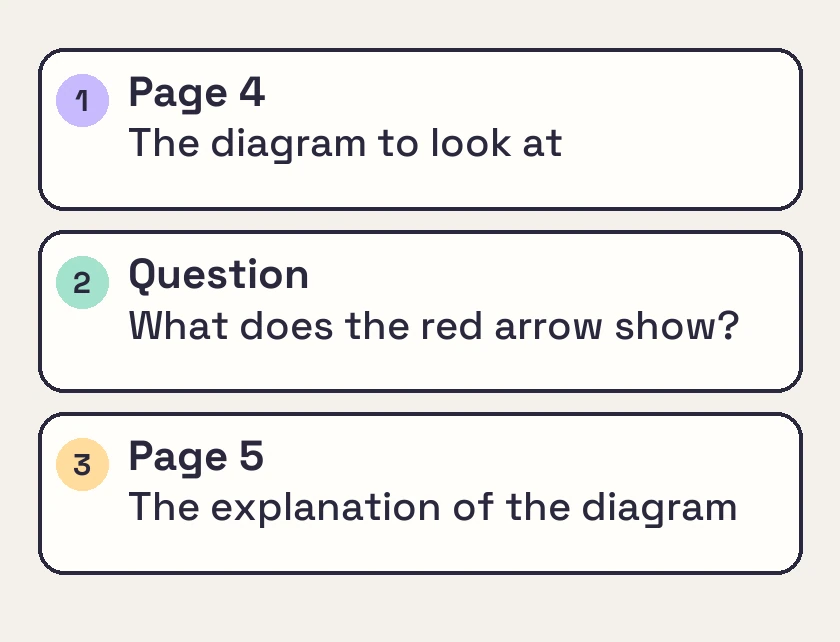
Placing a question between two pages
See the explanation
Between page 4 and page 5. In the import window, turn on “Show other session elements”, then drag the question before the page that reveals the answer. Then go through it page by page with “Test”.
Open the template · Training recap: four questions to close a session
Accepted formats and limits
The import takes the files you already have to hand before a training session or a lesson. The table says what each format becomes once it is in the session.
| What you import | What you get | Good to know |
|---|---|---|
| PowerPoint (.pptx, .ppt) or OpenDocument (.odp) | One image per selected slide | Animations and transitions are not kept; a missing font is substituted and reported |
| One image per selected page | The most faithful result for the fonts and effects of the original software | |
| PNG, JPG or WebP images | One slide per image | Handy for a screenshot or a diagram |
| Keynote | No direct import | Export to PDF or PowerPoint, then import that file |
One document: 512 MB and 600 pages at most. One session: 100 elements at most, questions included. Quality is automatic, up to 2560 pixels on the longest side.
Importing in 6 steps
The words in quotation marks are the ones on screen.
- Open the import: in the editor, click “Import” below the element list. The “Import slides” window opens.
- Choose the file: under “From my device”, select your PowerPoint, your PDF or an image. A bar follows the upload, then the preparation of the thumbnails.
- Select the pages: nothing is selected at first. Tick the pages you need, or use “Select all”. Clicking a thumbnail enlarges it.
- Place the pages: by default they are added at the end. Turn on “Show other session elements” to drag them between your questions. The “List” view makes ordering easier, the “Grid” view keeps large thumbnails.
- Confirm: the add button shows how many slides you selected; beyond 100 elements in the session, a message asks you to reduce the selection.
- Save and test: save the session, then run “Test” to go through it page by page as the group will.
What stays fixed, what is lost
An imported slide is an image. Its original proportions are kept, with no cropping. Animations and transitions are not: each slide becomes a single image. If one of them builds up in several steps, check its thumbnail and, if needed, split it into several slides in your presentation app before importing.
The text of an imported slide cannot be edited in Pomlet. To fix a typo, edit the original document, then replace it. Media linked to an external file is not loaded, and the import reports it.
In the editor and while hosting, clicking the slide enlarges it.
Fonts and hidden slides
Fonts: when a font in your document is missing during conversion, it is substituted and a warning says so: “Some fonts were substituted”. If the result looks different, export a PDF from your presentation app and import that PDF. It is the safest way to keep your fonts and effects.
Hidden slides: a slide hidden in PowerPoint stays in the list, marked with a crossed-out eye. It is not ticked at first, but you can select it. So check that an answer-key page does not slip into your selection.
Replacing or updating a document
“Manage this import”, on an imported slide, reopens the document and its thumbnails without uploading the file again. You can add pages, remove some or change their order.
“Replace document” uploads a new version of the same document. Pomlet matches the pages of the old and new versions: a page that moved is found again, a changed page is never replaced on its number alone, and new pages remain to be ticked. A page that has gone from the document keeps its image in the session until you remove it.
A live session already under way keeps the version it started with. “Remove this document” takes its slides out of the session after confirmation; the document then sits under “Removed documents”, from where “Restore” brings it back.
Limits and special cases
A few rules avoid bad surprises the day before a session.
- Quotas: 20 documents per hour and 50 per day, three preparations at the same time, and 5,000 prepared slides over 30 days.
- Protected or damaged document: the import refuses it. Provide an accessible copy or a PDF.
- More than 600 pages: split the document before importing it.
- Online documents: the import window may offer Google Slides / Drive and OneDrive / SharePoint when those connections are enabled. Otherwise, export a PDF and import it from your device.
- Questions drawn from the deck: “Create with AI” reads the text of a .pptx file of up to 15 MB, over its first 100 slides. It is a different feature: it drafts questions for you to review, it does not import images.
- Sharing: exporting a session creates a .pomlet.zip archive with the slide images, without the original document.
Checked in the product on 24 November 2026.
Before you project
Import, select, place, then test. Go through the session page by page and check that each question comes before the page that gives its answer.
Keep the original document: that is the one you will correct, before replacing the document in the session.
Useful links
Sources and further reading
- Import a PowerPoint or PDF into a session – Pomlet Help Center
- Pomlet limits: participants, files and AI – Pomlet Help Center