
Find and manage documents
Documents in this session identifies local files, public links and documents connected to Google or Microsoft. All documents returns to that list. Click a thumbnail to enlarge it in either layout. Remove this document moves it to Removed documents, where Restore brings it back. Copies already in use are kept; removal does not free storage. Save the session to retain changes to its elements.
Manage this import checks a connected document for changes; Check for updates also requests a check. Existing images remain available if the source is inaccessible. New pages are not added automatically and your order is preserved. Apply and save the changes. A running game stays unchanged. Public Google links are automatically checked at most once a day; Check for updates forces a check. Replacing with a local file is a fallback and ends synchronization after a successful conversion.
Worked example
Import three theory slides and insert a question
See the explanation
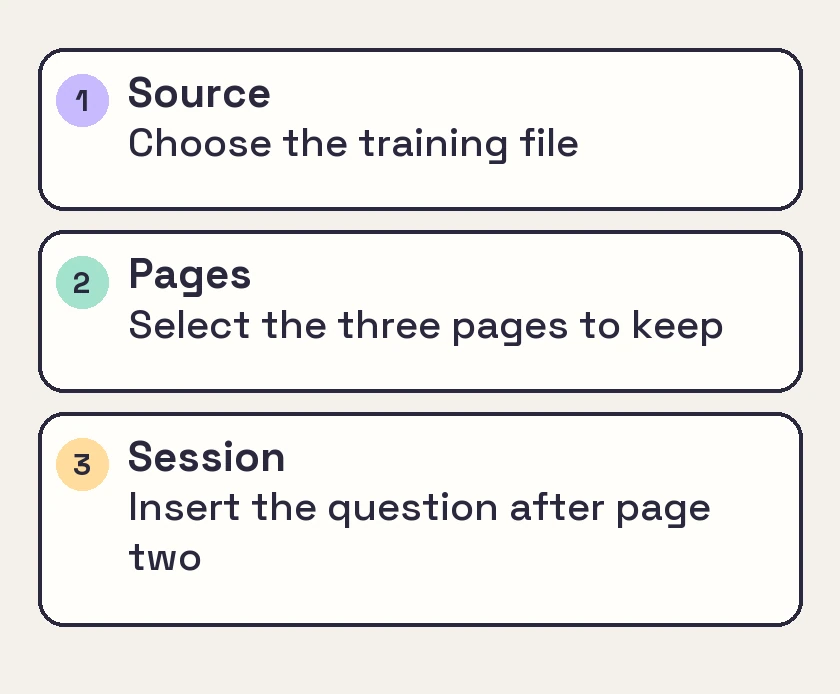
Identify the page containing the solution. Deselect it or correct the source file. Step through the preview in the same order your audience will see. The first question should come before the page that reveals its answer.
Manage an import
Manage this import reopens the document without uploading it again. Dismiss warnings with their close button. Remove this document removes its slides from the session after confirmation; the source stays available and you can undo the action in the editor. In a session you duplicated, the document remains the one of the original session: you can choose other pages there, and replace it from the original session. If someone else duplicates your session, they receive the slide images, without access to your document. A slide’s text accompanies its image as a description for screen readers, so participants can read it.
Choose the pages you need
In the editor, click Import below the element list. Choose a PowerPoint (.pptx or .ppt), an OpenDocument presentation (.odp), a PDF, or PNG, JPG or WebP images. For Keynote, first export as PDF or PowerPoint. A password-protected document must be unlocked first. Nothing is selected initially: select the pages you need or use Select all. Hidden slides remain selectable and have a crossed-out eye.
A document can contain up to 600 pages and weigh 512 MB. The final session holds up to 100 elements, including questions. Thumbnails help you choose; high-resolution images are prepared for selected pages, which can take a few minutes for a long, image-heavy selection. You can import 20 documents per hour and 50 per day, three at a time. Your imported documents can use 5 GB in total, and 5,000 pages can be prepared in high resolution over 30 days.
Mix theory and questions
Selected pages append to the end by default. Turn on Show other session elements to move them between questions before applying. Drag any part of a card, or use Space and the arrow keys. List view makes ordering easier; Grid keeps larger thumbnails. Deselecting a page keeps its place. Display preferences are remembered on this device. Hide unselected slides keeps only the chosen pages from this document in the grid. You can import several documents into one session.
Check the appearance
Slides are still images: their original proportions are preserved, without cropping or animations. Quality is automatic, up to 2560 pixels on the longest side. Missing-font substitutions are reported. For better fidelity to the original fonts and effects, export a PDF from the source software and import it. Review the thumbnails before hosting.
Click a slide in the editor or hosting views to enlarge it. Close or Escape returns to the session. An imported image cannot edit PowerPoint text: edit the original document, then replace or refresh the import.
Keep a connected document
Choose Google Slides / Drive or OneDrive / SharePoint when enabled. Google opens a picker for files you authorize; its standard permission may mention editing, but Pomlet reads files without changing them. You can also use a public Google Slides link when the file is downloadable without signing in. Private documents need not become public. For SharePoint, enter the site address, then choose its library; your organization may block the connection.
Manage this import reopens the same document and checks its version. Check for updates runs that check again. When content changes, review and apply your selection: the session order stays unchanged and new pages remain unselected. Deleted or inaccessible pages keep their previous image. An ongoing live session keeps its starting version. Google's API limits PDF exports to 10 MB; if blocked, export the PDF manually and import it locally.
Share a copy and create with AI
In the library, Export creates a .pomlet.zip archive when a session contains imported slides. It includes their images, without the original document or cloud connections. Import an exported session recreates independent copies in the same order. Other private media are not included. The printable assessment PDF remains focused on questions.
Create with AI also accepts PPTX: text is read in the browser without image conversion. Notes and embedded files are not used. The limit is 15 MB and the first 100 slides are read; only part of the extracted text feeds generation, under its usual limits. An image-only deck may provide no usable text.