
Live: sound comes from the host
By default, audio and video excerpts play on the host's device with the presentation screen. Connect that device to the venue speakers. Phones are used to answer; they do not automatically play quiz sound.
Background music, sound effects and question excerpts are separate elements. Turning off lobby music is not a substitute for checking excerpt volume.
Find the setting in the editor
Open session settings
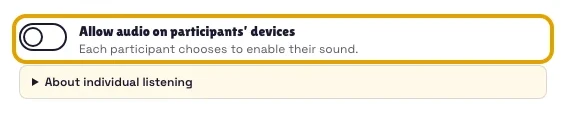
In the editor, select the gear icon. Find Allow audio on participant devices. This controls question media, not a second broadcast of background music.
Enable, then check on a phone
Enable the setting, save and test. Each participant must also enable sound using their device’s audio button: browsers may block playback without a user gesture.
Allow listening on each device
The host allows audio
In the quiz settings, enable Allow audio on participants’ devices. You can also do this during a session from the volume menu and withdraw permission the same way.
Each participant enables their audio
Permission reveals Enable my audio. Each person must tap it on their own device; your setting cannot force their browser to play sound.
Question sound becomes available
This includes audio excerpts and video soundtracks. Video images stay on the shared screen; background music and effects are not sent to participants.
Self-paced: each person enables sound
Listening is available in the self-paced activity. Participants use Turn sound on on their device and can replay excerpts. For a video, only its soundtrack is available on the participant's device, not the video images.
If a question depends on what appears in a video, adapt it before sharing a self-paced session: add an image or instructions that make it possible to answer without the visual sequence.
Real example
Example: a music quiz in a room
Use the host's speakers so everyone hears the same source. Individual listening is mainly useful with headphones or remotely; several phones playing together can create echo.
Connections and Bluetooth headphones may introduce delays. For remote listening, consider disabling the speed bonus and leaving enough time to answer.
If a participant cannot hear anything
- Check the host has allowed individual listening in the live session.
- Tap the activation button or playback permission prompt: the browser may need this gesture.
- Check media volume, silent mode and the chosen audio output (headphones or Bluetooth).
- If loading fails, check the connection, then use Retry audio.
- Do not expect background music or video images on the phone: they are not part of individual listening.