
From source to quiz: the steps
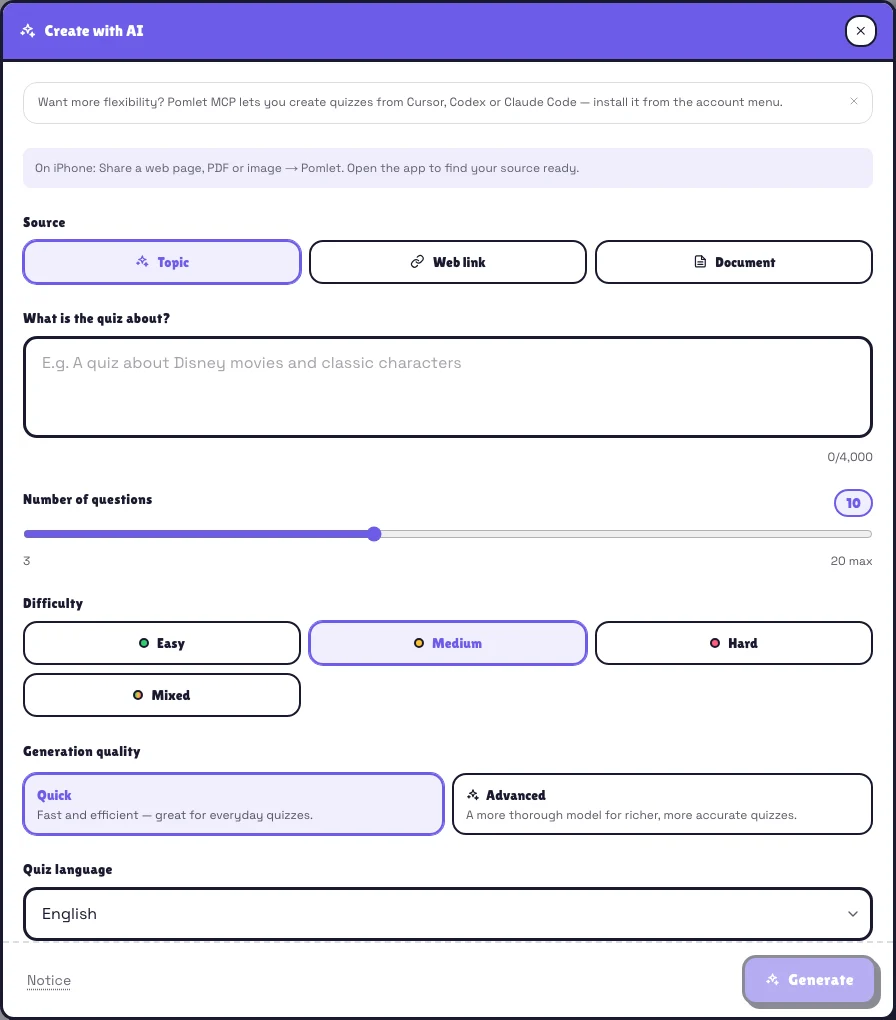
Start with a topic or source
In the library, choose Create a session, then Create with AI. Choose Topic for instructions, Website for a public URL, or Document for a PDF or readable image. Private or sign-in-protected pages may be inaccessible.
Define the audience and result
Describe the level, goal and concepts in your instructions. Set question count, difficulty and language. For example: 10 water-cycle questions for 11-year-olds, with a short explanation after each answer.
Check privacy before generating
Notice at the bottom left explains processing and links to account AI privacy settings. ZDR is a global preference also used for summaries. Avoid unnecessary personal data in the source.
Review in the editor
When generation finishes, check each correct answer, explanation and media item. Edit as needed, then preview before hosting. Generation creates editable content; it neither starts a game nor publishes individual elements.
Create with AI
AI is useful for producing a first draft quickly, not for skipping review. You can start from a topic, a web link, or a PDF.
- Choose the quiz language, difficulty, and number of questions.
- Add instructions to steer tone, scope, or expected level.
- Always review every correct answer and explanation before launching.
Good to know
Best practice
For a dynamic session, keep questions short, use 3 to 5 answers when possible, write a concise explanation for important questions, and add a slide whenever players need context before answering.
From iPhone sharing (beta)
In Safari, Files or Photos, choose Share then Pomlet. Open the app if needed: the source is filled into the AI form. Review options before generating. Pomlet must be installed; this integration is currently in beta.