
Step by step
Open the session menu
In the library, open the session’s three-dot menu and choose Print session. Free accounts can use this too.
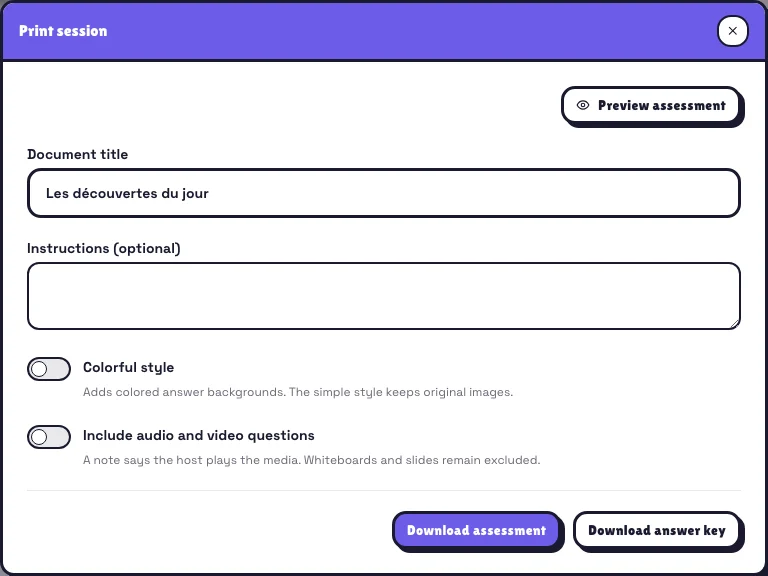
Check the preview
Choose a plain or colorful style. Plain keeps original images; colorful adds answer backgrounds. Use the preview to check layout before downloading.
Download both documents
The worksheet is for participants. The answer key repeats the questions with correct answers and available explanations. Print separately to avoid giving out solutions.
What happens next
Audio and video cannot play on paper. Depending on your option, incompatible elements are identified or excluded. Original numbers stay unchanged: 1, 2, 4 can be intentional and makes report comparison easier.
Real example
A practical example
A trainer hands out worksheets during a Wi-Fi outage, then uses the key to discuss answers. Paper answers are not automatically added to the Pomlet report.
Remember
Remember
For true black-and-white output, select that setting on your printer. The PDF has no participation QR code.