
Pair your own television
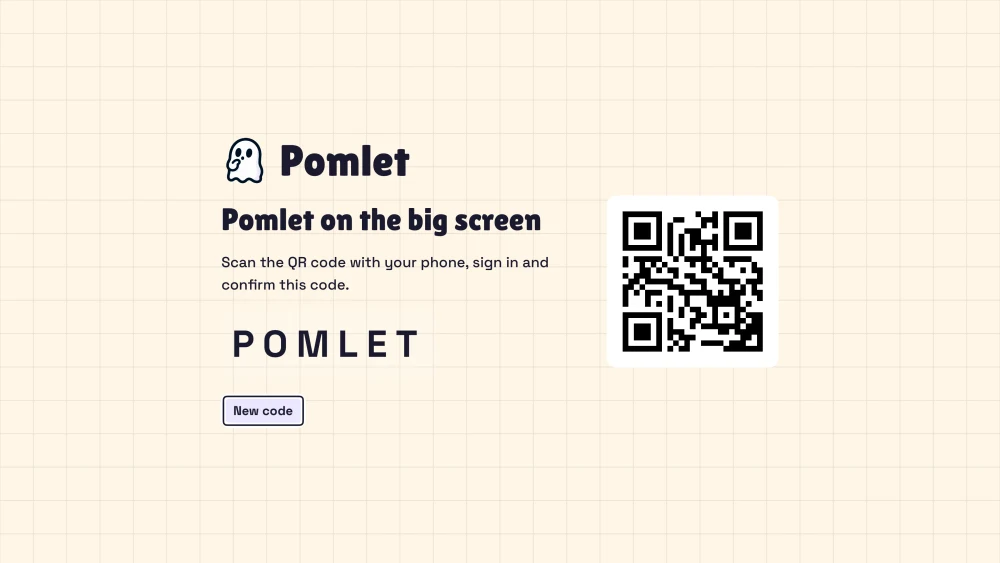
Open Pomlet on the Apple TV. With your phone, scan the pairing QR code displayed on that television. Sign in, compare the code on the approval page with the one on the TV and confirm only the request you just started.
Worked example
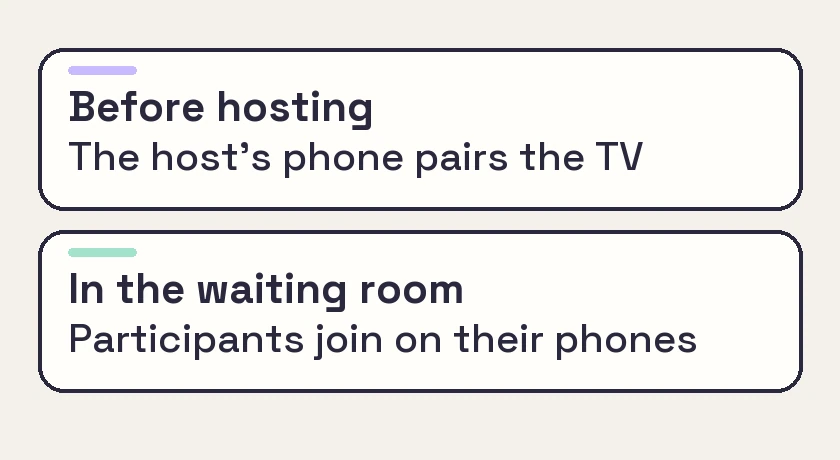
Tell the two TV QR codes apart
See the explanation
It is still pairing the host account. The host completes that step on their phone, selects the session in the TV library and opens its waiting room. The audience can now scan the joining QR code.
Find the session to present
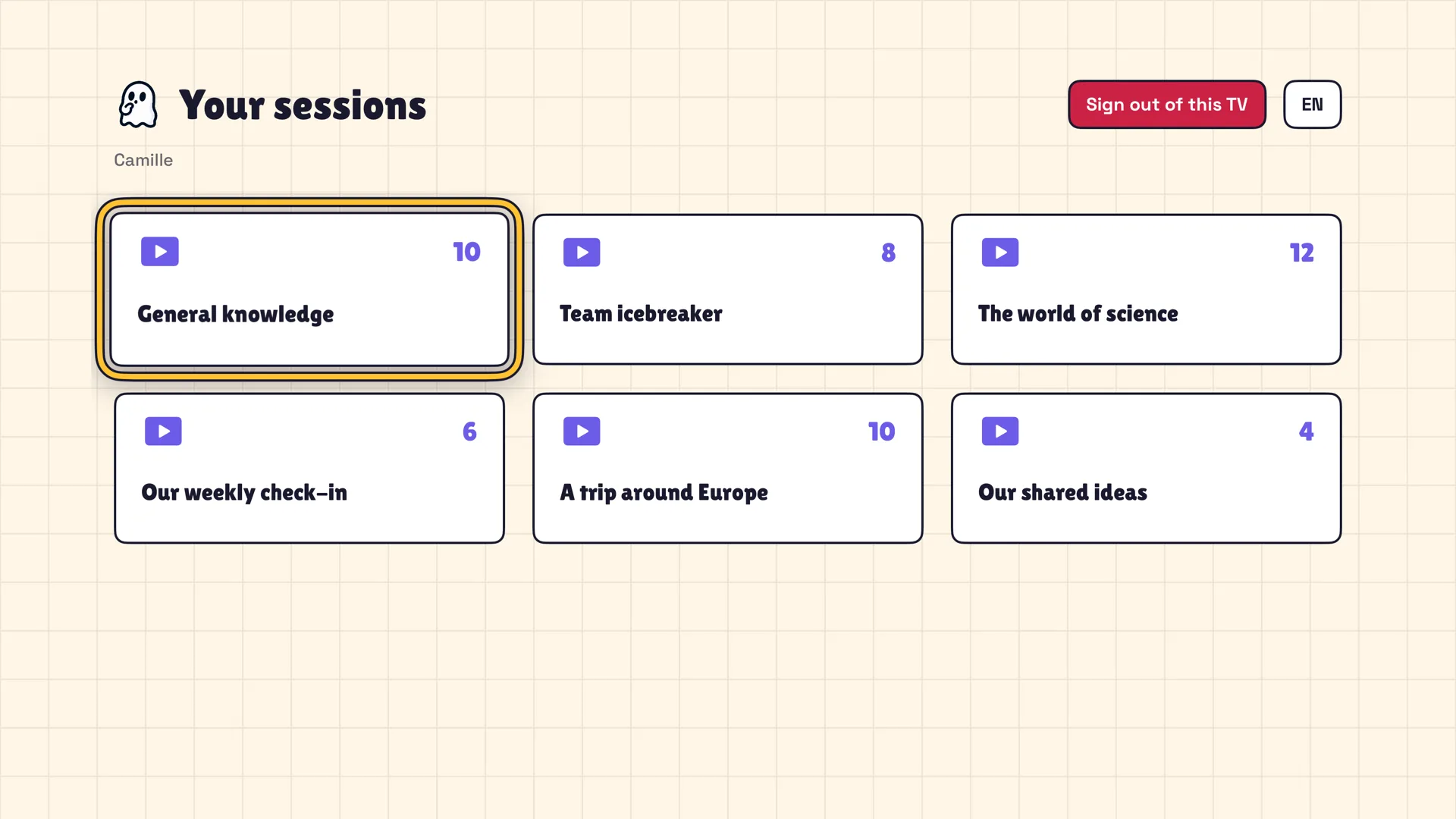
The library appears after pairing. Locate the title you prepared and open it with the remote. The list updates by itself: a session created or launched elsewhere appears within a few seconds. If it is missing, check the account that owns the session on your phone and compare it with the account that authorized the TV. If you sort your sessions into folders, choose one at the top of the list; “All” shows them all again.
Choose the mode before inviting people
In Classic, each participant plays for their own score. In Teams, check the groups before the first question. With Elimination, tell the audience that a wrong answer can take a player out of active play. Rehearse in the mode you intend to host.
Open the waiting room
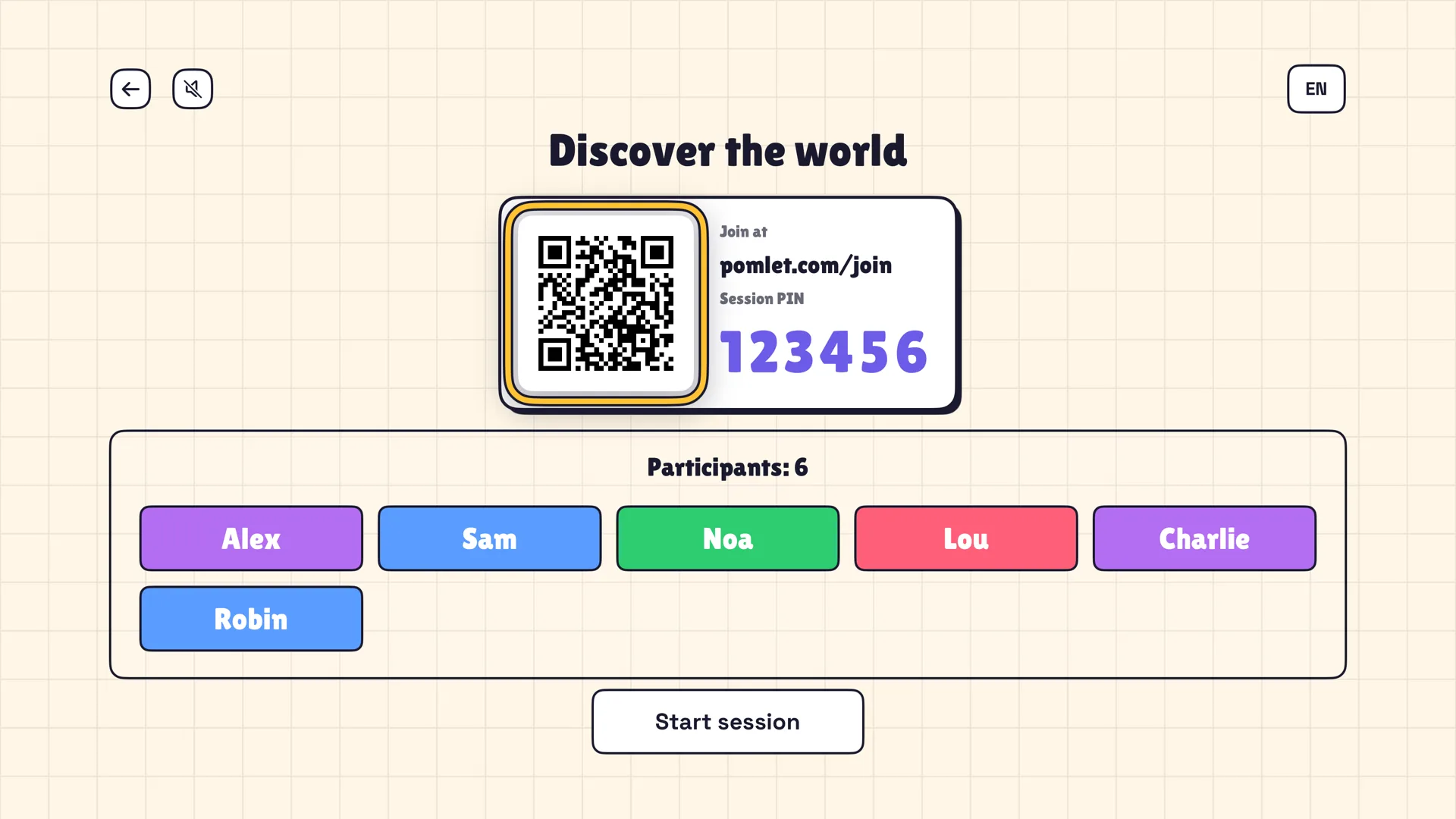
Choose a session in the TV library and open its waiting room. Participants use the session PIN or the joining QR code now displayed. The earlier pairing code was for the host. Ask one person to join before inviting the rest of the room.
Check that the PIN is legible from the back row. Enlarge the joining QR with the remote if needed. Ask someone to join at pomlet.com/join and look for their nickname on screen before starting.
Host the first question with the remote
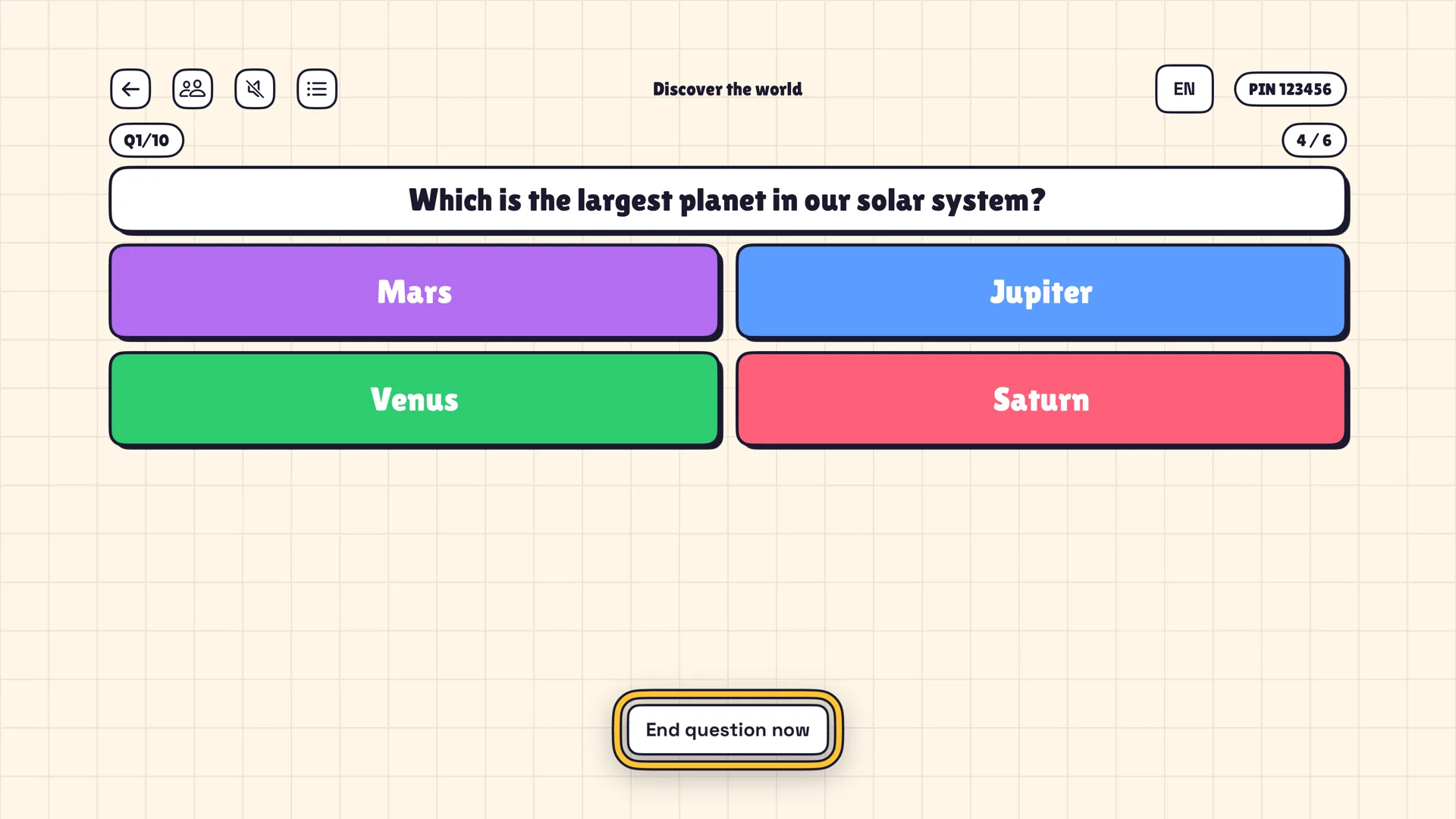
Read the prompt aloud if it is hard to see from the back of the room. Players answer on their phones. Check how many replies have arrived before moving to the correction. Let the group explain a popular choice, then use the on-screen control to move on.
Close the session and follow up
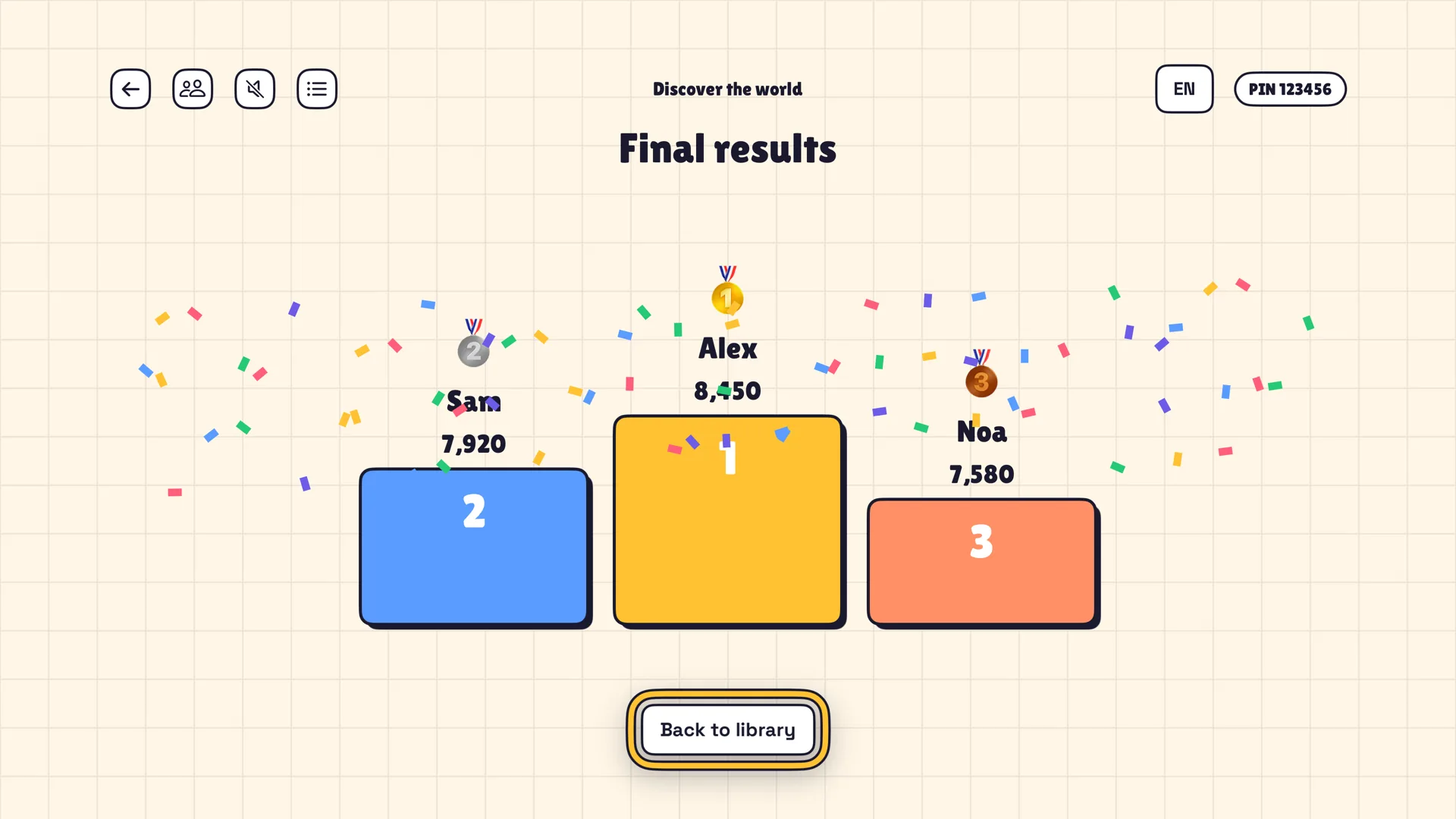
At the podium, ask the group to revisit the question that prompted the most discussion. The standings describe the game result. To plan a learning follow-up, open the session report from your reports library afterward.
Good to know
If the code expires
Request a new pairing code on the TV and repeat the approval. If you leave a shared television, open the connected Apple TV list in your account settings and disconnect that device.