
Add the right game
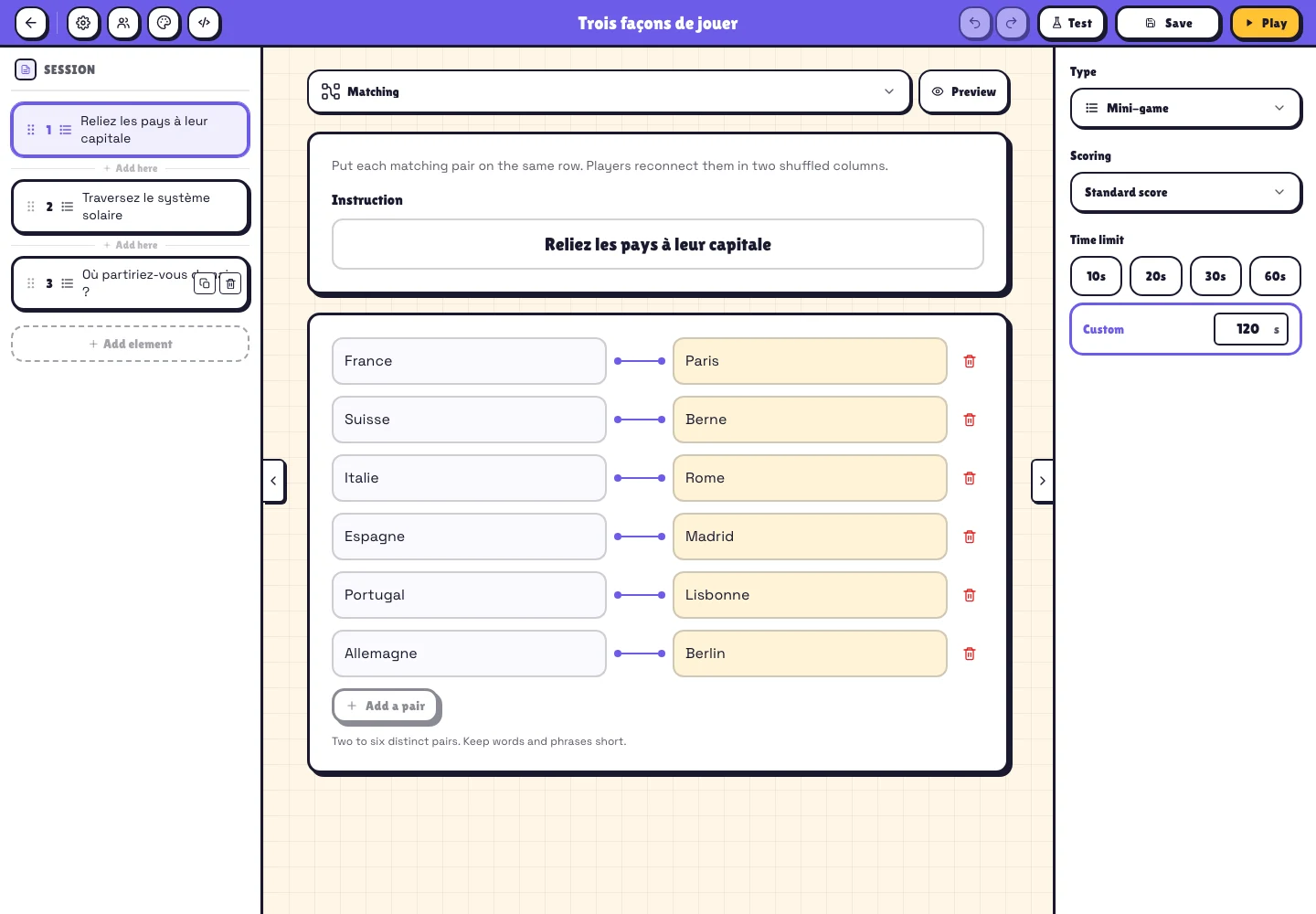
In the library, open your session with Edit. In the element list on the left, choose Add element → Mini-games. In the centre, select Matching, Upward! or Tapping duel. Write a short instruction and fill in the game content. Set duration and points in the right column.
Choose the mini-game in the centre dropdown. On a computer, hover over an element or mini-game type for half a second to see an animated illustration. On a phone, the Preview button opens the mini-game animation. Upward! stage tabs sit on the left, with Delete stage on the right and choices appear side by side as they do during play. Above 90 characters for a question or 24 for a choice, a red warning recommends shortening the text without blocking input.
Keep text short and readable on a phone. Use Test before hosting. Mini-games run inside a session: they cannot be published as individual elements and are omitted from printed worksheets.
Matching: find the pairs
Drag each item to its match: a line follows your finger or mouse and snaps to the hovered tile before release. You can also tap both items or use the keyboard. Once everyone finishes, or time runs out, the correction aligns each correct pair. Counters show successful matches and incorrect attempts, not how many players failed. A wrong attempt never reserves the wrong answer.
Each editor row is a correct pair, such as France — Paris or Switzerland — Bern. Add two to six pairs, with distinct labels in each column. The line between fields shows the link you define. The right-hand answers are shuffled for each player.
The player taps a left item, then its right-hand partner. A correct pair turns green and stays solved. A mistake briefly flashes red and leaves both items available. It does not directly subtract points; time spent affects the speed bonus. The host screen shows the two columns without revealing the links during play. Use it for vocabulary, capitals, symbols or short definitions.
Upward!: advance, learn and try again
A correct answer turns the tile green, without resizing it, before moving on. A wrong answer shows a red cross for one second, then the ascent restarts. Your best stage stays visible and counts towards your score even after a mistake. The timer keeps running during feedback. In the iPhone app, haptic feedback distinguishes success from error; Safari on iPhone does not provide these vibrations.
Create two to ten stages. Each stage has a question, two or three choices and one correct answer: select its check mark in the editor. Use the numbered tabs to move between stages. For example, identify three properties of a planet with increasing difficulty.
A correct answer moves the ghost forward. A mistake sends it back to the start and choices are reshuffled. The furthest stage reached is kept for scoring, even after a restart. The timer continues. Each new stage appears in the same place without requiring scrolling.
Tapping duel: tip the balance
Enter two choices, such as Mountains and Sea, then set a duration. Players can repeatedly tap either button. The shared meter changes during live play. Results show total taps and the winning side, or a tie.
This game awards no points and eliminates nobody. Taps are not people: someone can tap more than others or switch sides. Use it as an activity or mood check, not an equal-vote poll. Updates are batched and excessive tapping rates are limited.
Timing, points and modes
Default durations are 30 seconds for Matching, 60 for Upward! and 20 for Tapping duel. Duration ranges from 10 to 120 seconds. In Matching and Upward!, progress provides 80% of the score when the speed bonus is on; the remaining 20% rewards a fully completed, fast run. Without the speed bonus, only progress counts. Double points also applies.
In teams, everyone plays on their device and their points feed the session’s chosen team score calculation. In elimination, completing a graded game is a correct answer; an incomplete game follows the session’s elimination rule. The duel stays neutral. In self-paced mode everyone has their own timer and the duel meter reflects their own taps.
Follow the group and review results
The path is centred, starting at the bottom. Each stage has one central tile containing player dots; no column represents an answer choice. On the phone, all upcoming stages are visible above the choices. At reveal, a numbered correction pairs every question with its correct answer in stage order. Crowded tiles overlap dots and show an ellipsis for the remainder. All ten stages remain visible. The Finish area groups completed players with green dots and a count. Ending early keeps each player’s best progress.
After displaying the session’s final results, the report keeps scores, timings, progress and duel taps. Reconnecting with the same identity restores the current stage without restarting the timer. Animations respect reduced-motion preferences. Vibration depends on device and browser support.
Read the mini-game report
In Reports, open the session, select the Questions tab and find each mini-game among its elements. Matching and Upward! show a distribution of participants by their best progress, including how many completed the game. For example, four of six stages remain counted even after a reset to the start. Individual rows retain each participant’s progress and time.
For Tapping duel, the two counters show cumulative taps for each side and the final result. They are not person counts: one person can tap repeatedly and on both sides. The duel adds no ranking points.