
Install the add-in
Pomlet is not in Microsoft Marketplace yet: PowerPoint adds the add-in from its file. Download it at pomlet.com/powerpoint (“Download the add-in” button), then follow the method for your PowerPoint below. There is only one thing to install: Pomlet Player, which goes into the slide and is complete on its own (sign-in, choice of the question and game).
Direct address of the file: https://pomlet.com/office/pomlet-powerpoint.xml
This file (a manifest) tells PowerPoint where to find Pomlet. It contains no program and no personal data.
Menu names may vary slightly with the version and language of PowerPoint.
| PowerPoint | Where to go |
|---|---|
| PowerPoint on the web | Home → Add-ins → More Settings → Upload My Add-in |
| PowerPoint for Mac | Finder → Go to Folder (⇧⌘G) → …/Documents/wef → pomlet-powerpoint.xml ; PowerPoint → Home → Add-ins → Pomlet Player |
| PowerPoint for Windows | File → Options → Trust Center → Trusted Add-in Catalogs ; Home → Add-ins → Advanced → SHARED FOLDER |
| Microsoft 365 administrators: for the whole school or company | admin.microsoft.com → Settings → Integrated apps → Upload custom apps |
PowerPoint on the web
The quickest way: nothing to install on the computer. Works with a personal Microsoft account as well as with a work or school account.
- Download the add-in (the file pomlet-powerpoint.xml).
- Open a presentation in PowerPoint on the web (office.com or OneDrive).
- Select Home → Add-ins, then More Settings.
- In the Office Add-ins dialog, select Upload My Add-in, choose the downloaded file and confirm.
- Pomlet Player opens in the slide: go on to “Use the add-in” below.
PowerPoint on the web keeps the add-in in your browser. After clearing the browser’s data, in a private window or in another browser, upload the file again.
PowerPoint for Mac
Version 16.64 or later. You copy the file once into PowerPoint’s add-in folder.
- Download the add-in (the file pomlet-powerpoint.xml).
- In the Finder, press ⇧⌘G (Go to Folder), paste
~/Library/Containers/com.microsoft.Powerpoint/Data/Documentsand confirm. - Open the wef folder. If it does not exist, create it there, with exactly that name.
- Copy the downloaded file into the wef folder.
- Quit PowerPoint completely (⌘Q), open it again and open a presentation.
- Select Home → Add-ins, then Pomlet Player.
PowerPoint for Windows
Microsoft 365 version 2208 or later, or Office 2024. Windows adds add-ins from a shared folder that you trust once.
- Create a folder, for example Documents\Pomlet, and put the downloaded file in it.
- Share it: right-click the folder → Properties → Sharing tab → Share, add yourself, then Share. Note the network path shown, for example \\YOUR-PC\Pomlet.
- In PowerPoint: File → Options → Trust Center → Trust Center Settings → Trusted Add-in Catalogs.
- Paste the network path in Catalog Url, select Add catalog, tick Show in Menu, then OK twice.
- Close and reopen PowerPoint, then open a presentation.
- Select Home → Add-ins → Advanced, choose SHARED FOLDER at the top of the dialog, then Pomlet Player, and Add.
Microsoft presents this shared-folder method mainly for testing. In a school or company, the simplest way is to ask your Microsoft 365 administrator. You can also present with PowerPoint on the web.
Microsoft 365 administrators: for the whole school or company
Install Pomlet once for everyone, or for chosen groups. Users find it in PowerPoint without doing anything.
- In the Microsoft 365 admin center, select Settings → Integrated apps, then Upload custom apps.
- Choose Office Add-in as the app type, then provide the link to the file below, or upload the file for administrators.
- Choose who gets it: the entire organization, specific users or groups, or just you to try it first. Finish the deployment.
- The add-in can take up to 24 hours to appear in PowerPoint.
Microsoft requires Microsoft 365 Business, Enterprise or Education licences with Exchange Online. These files hold the same add-in; its slides refer to your organization’s catalog.
Link to the file for the administrator: https://pomlet.com/office/admin/pomlet-player.xml. The optional Pomlet pane (ribbon button that inserts question slides in one click): https://pomlet.com/office/admin/pomlet-taskpane.xml.
Connect your account
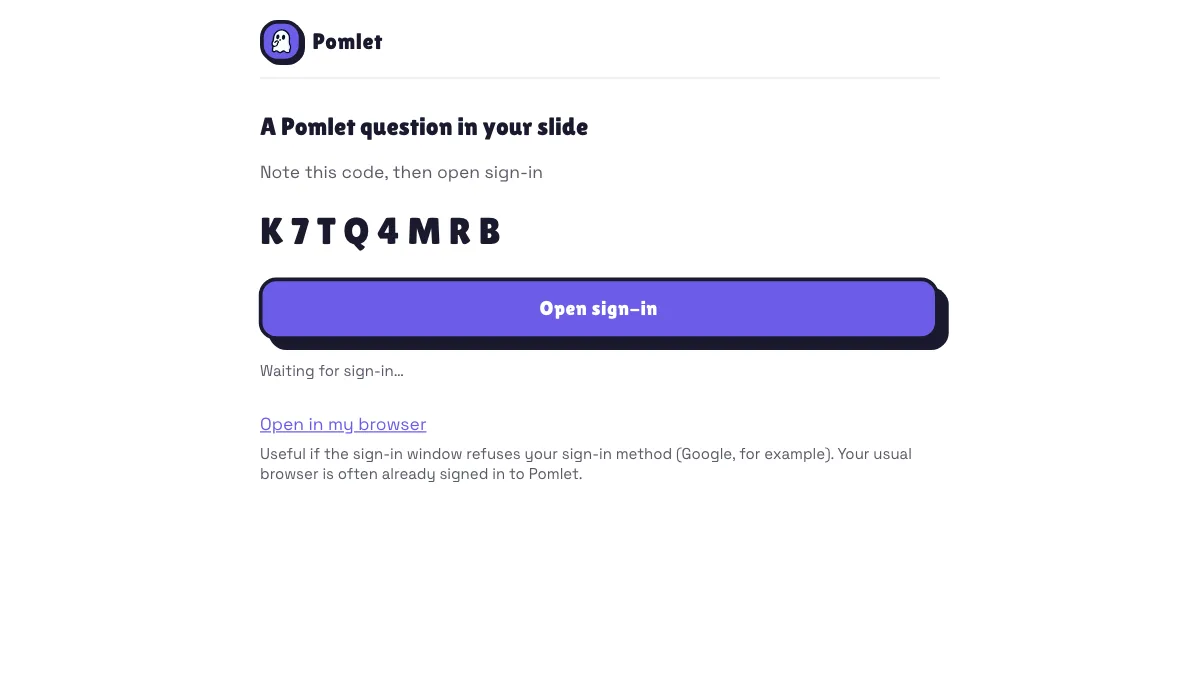
Ask for a code
Insert Pomlet Player in a slide (Home → Add-ins), then click “Connect my Pomlet account”. Without an account, “Create a free account” opens the registration with the same code.
Enter it in Pomlet
Click “Open sign-in”, or “Open in my browser” if the window refuses your sign-in method (Google, for example). Sign in, enter the code shown in PowerPoint and click “Authorize this add-in”. Never enter a code you received in a message.
Eight hours of access
Access lasts eight hours at most and covers every slide on the computer. The account menu shows when it ends. Signing out of the browser you used also disconnects PowerPoint.
Prepare your slides
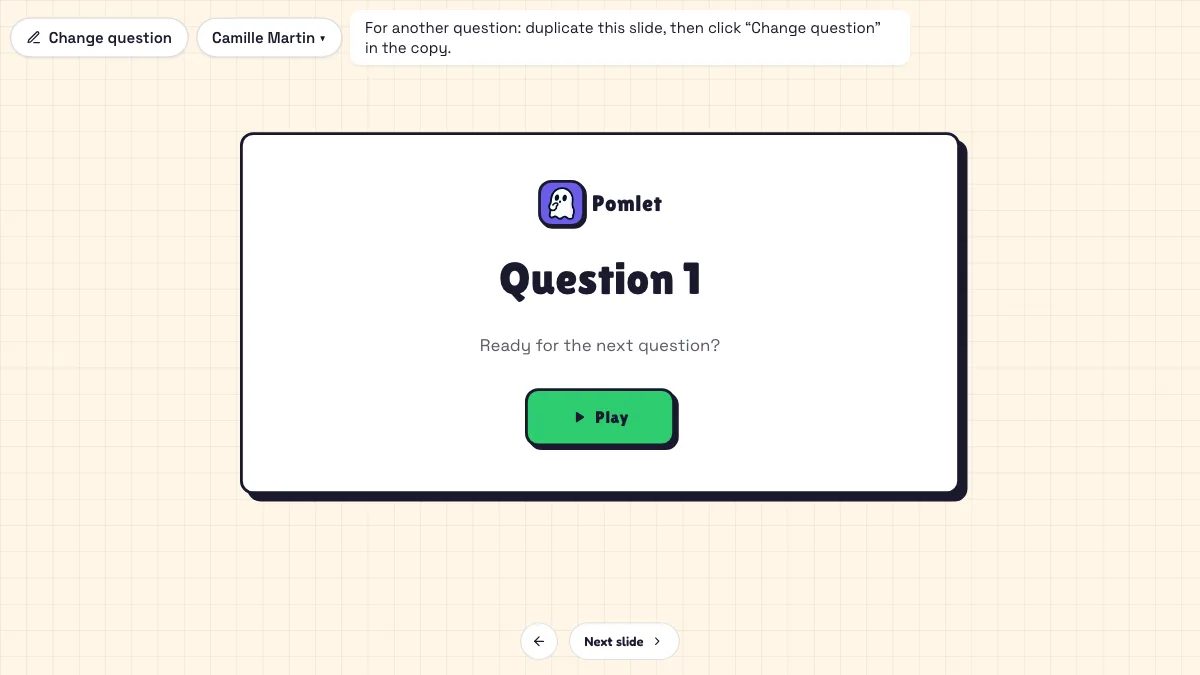
In the slide, choose a session, then the question to play: the slide shows “Question 1”. “Change question” replaces it later. For the next question, duplicate the slide (right-click its thumbnail → Duplicate Slide) and click “Change question” in the copy. These buttons do not appear during the slide show.
When your Microsoft 365 administrator installed it, the player also offers “Add a question”, which creates the next slide. If the Pomlet pane is installed, click + beside each question: its slide is added after the current slide; the slide number is shown, the eye takes you to it and the ⋯ menu contains cumulative scoring.
The deck decides: deleting a question’s slide removes it from the next game, and the order of the slides is the order of the questions. Put your theory slides anywhere in between. Keep one question per slide.
Host during the slide show
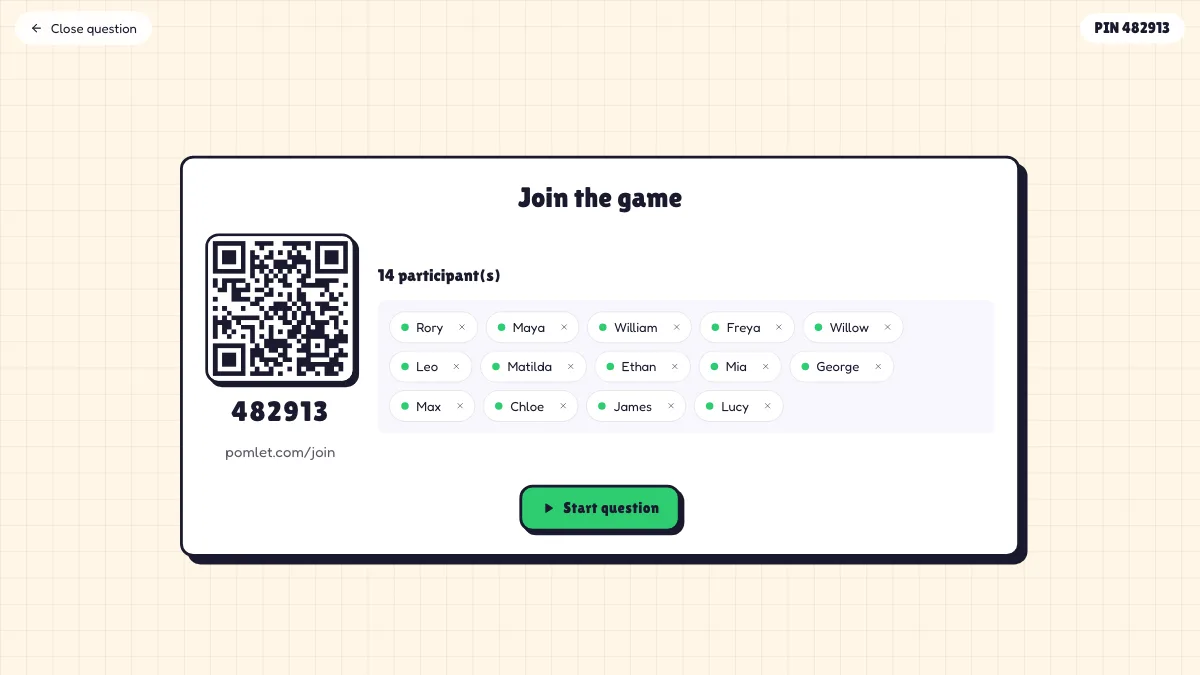
Before playing, the slide only shows Question 1, then 2, 3… Play opens the QR code, the PIN and the participant list; participants join at pomlet.com/join, with no account. Start question then reveals its content, and the results appear in the slide. The PIN, participants and scores are kept from one question to the next, even after several theory slides. Going back never replays a question.
End game, in the menu with your name (Normal view) or the pane’s ⋯ menu, offers to keep a partial report; otherwise no report is created. Without Pro, the waiting room shows the participant limit and the people waiting.
PowerPoint versions
PowerPoint for Windows (Microsoft 365 version 2208 or later, or Office 2024), PowerPoint for Mac (16.64 or later) and PowerPoint on the web. PowerPoint for iPad and Office 2021 are not supported. Try it in your version before an important session.
Troubleshooting
- Pomlet Player is not in the list of add-ins Quit PowerPoint completely and open it again. On a Mac, check that the file ends in .xml and is in the wef folder. On Windows, check that “Show in Menu” is ticked and that the network path is exact.
- The add-in disappeared from PowerPoint on the web PowerPoint on the web keeps an uploaded add-in in your browser. After clearing the browser’s data, in a private window or in another browser, upload the file again.
- “Upload My Add-in” is missing or refused Your organization may not allow personal add-ins. Ask your Microsoft 365 administrator to install Pomlet (see “Microsoft 365 administrators”).
- The slide stays blank Check your Internet connection and that pomlet.com opens in your browser: some networks filter sites they do not know. Then close the presentation and open it again.
- The sign-in window refuses Google, or closes Click “Open in my browser”: the same code works in your usual browser, which is often already signed in to Pomlet.
- “This version of PowerPoint cannot open a Pomlet game” Your PowerPoint is too old (Office 2021) or it is PowerPoint for iPad. Update it, or use PowerPoint on the web.
- There is no “Add a question” button That is normal for the add-in installed from its file: duplicate the slide, then click “Change question” in the copy.
- A colleague sees “add-in unavailable” in my file They need to install the add-in too: send them this page. If the message stays afterwards, they insert Pomlet Player again in that slide and choose the question.